
The Anatomy of an SVG#
SVG stands for Scalable Vector Graphics. Unlike pixel-based raster images (like PNG or JPG), which are grids of colored dots, an SVG is an XML-based document that describes shapes mathematically. Because they are code, SVGs are:
Resolution Independent: They look razor-sharp on a 4K monitor or a mobile screen because the browser “redraws” the math at any scale.
DOM-Friendly: Every shape is an element you can target with CSS or JavaScript.
Performant: Usually much smaller in file size than high-res bitmaps, especially for icons and flat illustrations.
SVGs are commonly used for web icons, illustrations, and data visualizations.
The Coordinate System#
The SVG “canvas” starts at the top-left corner (0,0). This is often the first hurdle for designers used to traditional Cartesian math graphs where the Y-axis increases upward. In the browser, the rules follow browser conventions:
X-axis: Increases as you move right.
Y-axis: Increases as you move downward.
Think of it like reading a book: you start at the top-left and move right across the page and down the lines.
The viewBox: Understanding “User Units”#
One of the most powerful features of SVG is that its internal coordinates are unitless. This is where the concept of User Units comes in.
When you write viewBox="0 0 100 100", you aren’t defining pixels, inches, or centimeters. You are defining a virtual coordinate grid. You are telling the browser: “Within this image, the grid is exactly 100 units wide and 100 units tall.”
Whether the SVG is displayed as a tiny 16px icon or a massive 1920px hero background, a circle at cx="50" will always stay exactly in the middle of that coordinate grid, because the browser scales those 100 units proportionally to fit the available space.
How and Why SVG Scales Automatically#
The key idea to understand is this:
An SVG does not draw in pixels — it draws in its own internal coordinate system.
When you define a viewBox, you are creating a virtual drawing grid. For example:
1

<svg viewBox="0 0 100 100">
This tells the browser that everything inside the SVG lives in a coordinate space that is 100 units wide and 100 units tall. These units are not pixels — they are simply positions on a grid.
At render time, the browser maps this virtual grid onto the actual size of the SVG element on the page.
What the Browser Actually Does#
Think of the viewBox as a blueprint and the SVG’s width and height as the frame you place it in.
The
viewBoxdefines what exists in the drawing → a 100 × 100 coordinate system.The
widthandheightdefine how large it appears on the page → for example, 50px × 50px or 400px × 400px.The browser scales the entire coordinate system proportionally to fit that space.
Every unit expands or shrinks by the same ratio.
Why the Center Always Stays the Center#
If the coordinate grid runs from 0 to 100 in both directions:
50is always the midpoint25is always one quarter75is always three quarters
So a shape placed at:
1

<circle cx="50" cy="50" />
will remain perfectly centered regardless of how large or small the SVG is rendered — because the browser rescales the entire coordinate system, not individual elements.
A Helpful Mental Model#
Think of SVG as graph paper printed on a stretchable sheet:
The grid stays consistent
The sheet stretches to fit its container
All shapes scale together and keep their proportions
This is what makes SVG graphics resolution-independent.
The viewBox (Canvas) vs. Viewport (Window)#
To master SVG, you must understand the distinction between these two layers:
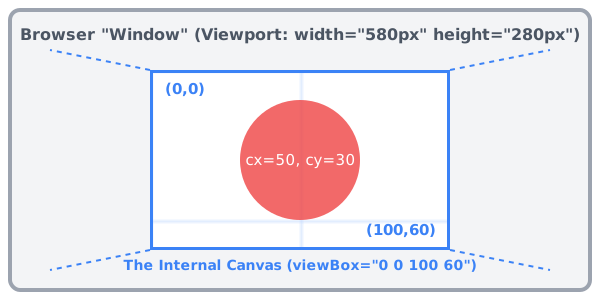
The Viewport (width & height): This is the “window” on the webpage. It defines how much physical space the SVG occupies in the browser layout (usually measured in px, rem, or %).
The viewBox: This is the “canvas” or the coordinate system. It defines which part of the drawing is visible through the window.
Pro Tip: If your
viewBoxis smaller than yourviewport, the browser will automatically “zoom in” on your shapes to fill the space. If theviewBoxis larger, the shapes will appear smaller.
1
2
3

<svg width="200" height="200" viewBox="0 0 100 100">
  <circle cx="50" cy="50" r="50" />
</svg>
What if the Aspect Ratios Don’t Match?#
If your viewBox is a square (100 x 100) but your width and height define a rectangle (400 x 200), the browser has to decide how to
fit the content.
By default, SVG uses an attribute called preserveAspectRatio="xMidYMid meet". This ensures the entire shape is visible
and centered without being distorted (like a “contain” setting in CSS).
Pro Tip: For your first few projects, try to keep your viewBox ratio and your CSS width/height ratio the same. It prevents
“letterboxing” and keeps your coordinate math predictable.
The Points List Syntax#
Some SVG shapes (polyline and polygon) define their geometry using a shared points list syntax.
A points list is a series of numbers that define coordinate pairs:
Each number may be separated by whitespace, a comma, a line break (EOL), or any combination of these.
-
Each point consists of exactly two numbers:
first: x coordinate
second: y coordinate
For example, the points (0,0), (1,1), and (2,2) may be written as:
0,0 1,1 2,2
or equivalently:
0, 0 1, 1 2, 2
Related Reading: If you want a deeper comparison between the two shapes that use the points attribute—and a more detailed explanation of how the points coordinate syntax works—check out SVG Polygon vs Polyline: Points, Fill Rules, and Use Cases.
Basic Shapes#
Before moving on to SVG Essentials: Mastering the Path Element—the “pro” tool of SVG—you must first master these six standalone elements. Think of these as the building blocks that help you understand coordinate math before you start drawing custom curves.
Lines#
The simplest shape. It draws a straight line between two points.
x1,y1: Starting point of the line.x2,y2: Ending point of the line.
Each pair defines a coordinate in the SVG space, and the browser draws a straight line between them.
1
2
3

<svg viewBox="0 0 100 100">
  <line x1="10" y1="10" x2="90" y2="90" stroke="#6366f1" stroke-width="2" stroke-linecap="round" />
</svg>
Rectangles#
Draws rectangles and squares.
x: Horizontal position of the rectangle’s top-left corner.y: Vertical position of the rectangle’s top-left corner.width: The horizontal size of the rectangle.height: The vertical size of the rectangle.rx,ry(Optional): Control the horizontal and vertical corner radius. When both are set, the rectangle’s corners become rounded.
1
2
3

<svg viewBox="0 0 100 100">
  <rect x="15" y="15" width="70" height="50" fill="#6366f1" fill-opacity="0.2" stroke="#4338ca" stroke-width="2" />
</svg>
Rounded version:
1
2
3

<svg viewBox="0 0 100 100">
  <rect x="15" y="15" width="70" height="50" rx="35" ry="25" fill="#6366f1" fill-opacity="0.2" stroke="#4338ca" stroke-width="2" />
</svg>
Circles#
Defined using a center point and a radius.
cx(Center X): The horizontal position of the circle’s center within the SVG coordinate system.cy(Center Y): The vertical position of the circle’s center within the SVG coordinate system.r(Radius): The distance from the center point to the circle’s edge. This value determines the overall size of the circle and is measured in user units defined by theviewBox.
1
2
3

<svg viewBox="0 0 100 100">
  <circle cx="50" cy="50" r="30" fill="#f43f5e" fill-opacity="0.2" stroke="#be123c" stroke-width="2" />
</svg>
Ellipses#
Like a circle, but you can define a different radius for width and height.
cx,cy: The center point of the ellipse.rx: Horizontal radius (half the width).ry: Vertical radius (half the height).
1
2
3

<svg viewBox="0 0 100 100">
  <ellipse cx="50" cy="50" rx="40" ry="25" fill="#ec4899" fill-opacity="0.2" stroke="#be185d" stroke-width="2" />
</svg>
Polylines#
A series of connected straight lines. It is an open shape (the last point does not automatically connect to the first).
points: A sequence of coordinate pairs that define the vertices of the shape (see The Points List Syntax).
1
2
3

<svg viewBox="0 0 100 100">
  <polyline points="20,80 50,20 80,80" fill="none" stroke="#10b981" stroke-width="3" stroke-linecap="round" stroke-linejoin="round" />
</svg>
👉 Key notes:
Each coordinate pair is separated by space or comma.
The shape does not close automatically.
Use when you want continuous open lines (charts, graphs, routes).
Want a deeper explanation of when to use
polylinevspolygon? Read: SVG Polygon vs Polyline: Points, Fill Rules, and Use Cases
Polygons#
Exactly like a polyline, but it is a closed shape. The browser automatically draws a line from the last point back to the first.
points: A sequence of coordinate pairs that define the vertices of the shape (see The Points List Syntax).
1
2
3

<svg viewBox="0 0 100 100">
  <polygon points="50,15 85,85 15,85" fill="#f59e0b" fill-opacity="0.2" stroke="#b45309" stroke-width="2" stroke-linejoin="round" />
</svg>
👉 Key notes:
Always closed → useful for polygons (triangles, hexagons, stars).
-
The order of points matters:
Clockwise → fills normally.
Counter-clockwise → may invert fills depending on
fill-rule.
If you’re unsure when to use
polygonvspolyline, see SVG Polygon vs Polyline: Points, Fill Rules, and Use Cases
Styling and Visual Attributes#
One of the most powerful aspects of SVG is that it lives directly in the DOM. This means you aren’t stuck with hard-coded values; you can style shapes using attributes directly on the element, or via external CSS for a cleaner separation of concerns.
Presentation Attributes vs. CSS#
In the SVG world, properties such as fill and stroke are technically presentation attributes. While they look like HTML attributes, they actually behave like low-priority CSS rules.
| Attribute | Description | CSS Equivalent |
|---|---|---|
fill |
The internal color of the shape. | fill |
stroke |
The color of the outline. | stroke |
stroke-width |
The thickness of the line. | stroke-width |
stroke-dasharray |
Creates dashed or dotted patterns. | stroke-dasharray |
opacity |
Sets transparency (0 to 1). | opacity |
fill-opacity |
Transparency of the fill only. | fill-opacity |
The Specificity Rule#
If you define a fill="red" attribute on a circle, but your CSS file says circle { fill: blue; }, the circle will be blue. CSS will always override presentation attributes.
Best Practice: Use attributes for “structural” colors that should stay the same regardless of the theme, and use CSS for “interactive” states (like >
:hover) or dark/light mode adjustments.
Refining the “Stroke” Look#
To make your vectors look professional and “app-like,” you need to control how lines end and how they connect at corners.
1. stroke-linecap#
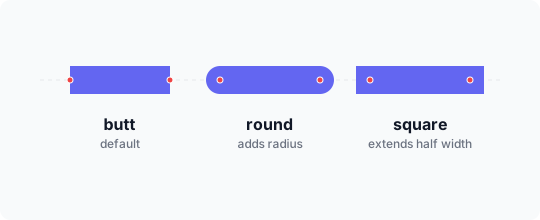
This defines how the ends of a line or an open path are rendered.
butt: The default. Ends abruptly at the coordinate.round: Adds a semi-circle cap, making the line look softer.square: Adds a square cap that extends slightly past the coordinate.
2. stroke-linejoin#
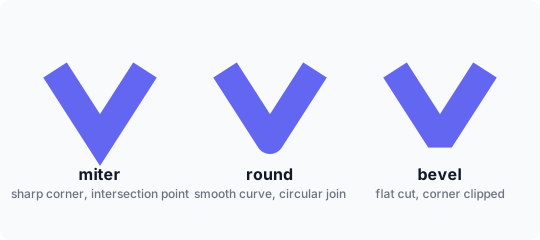
This defines the shape of the corners where two line segments meet.
miter: A sharp, pointed corner (default).round: A smooth, curved corner.bevel: A flat, “sliced-off” corner.
CSS-Only Styles & Interactivity#
Some effects can only be achieved—or are much easier to manage—through CSS. This is where SVG truly shines for UI design, allowing for transitions and hover states.
The Heart Shape#
1
2
3
4
5
6
7
8
9
10
11
12
13
14
15

/* Target SVG elements just like HTML */
.icon-heart {
  fill: #f43f5e;
  fill-opacity: 0.2;
  stroke: #e11d48;
  stroke-width: 1;
  cursor: pointer;
  transition: fill 0.3s ease, transform 0.3s ease;
  /* The SVG "Gotcha": You MUST set the origin */
  transform-origin: center;
}
.icon-heart:hover {
  fill: #e11d48;
  transform: scale(1.1);
}
⚠️ The
transform-originWarning: Unlike HTML elements (where the center is the default origin), SVG elements default to the top-left (0,0) of the entire canvas. If you try to rotate or scale a shape without settingtransform-origin: center;, it will appear to “swing” wildly from the top-left corner rather than spinning in place.
Modern CSS Shortcut:
To make an SVG element rotate around its own center (just like an HTML div), use transform-box: fill-box;
in combination with transform-origin: center;. This tells the browser to use the shape’s individual bounding
box as the reference point, rather than the top-left (0,0) of the entire SVG canvas.
1
2
3
4
5
6
7
8
9
10
11
12
13

.sun-icon-rays {
  /* 1. Define the reference box as the shape itself */
  transform-box: fill-box;

  /* 2. Now 'center' refers to the center of the shape */
  transform-origin: center;

  transition: transform 0.4s cubic-bezier(0.4, 0, 0.2, 1);
  cursor: pointer;
}
.canvas:hover .sun-icon-rays {
  transform: rotate(90deg) scale(1.1);
}
Radar Scanner#
Making SVGs Accessible#
SVGs are code, not just images. This gives us a huge advantage for accessibility. To ensure screen readers can describe
your graphic, always include a <title> as the first child of your <svg> tag.
1
2
3
4

<svg viewBox="0 0 100 100" role="img">
  <title>A blue circle representing a planet</title>
  <circle cx="50" cy="50" r="40" fill="blue" />
</svg>
Summary#
In this post, we’ve laid the groundwork for building professional, resolution-independent graphics. By mastering the basics, you’ve moved past “copy-pasting” SVG code to actually understanding how it works:
Coordinate Logic: You now know that the SVG world starts at the top-left (0,0) and that the Y-axis moves downward.
The
viewBoxvs. Viewport: You’ve mastered the distinction between the physical “window” (pixels) and the internal “canvas” (user units).Basic Shapes: You can now construct layouts using the six core elements: lines, rectangles, circles, ellipses, polylines, and polygons.
Styling & Interactivity: You understand how to use
fillandstrokeand whytransform-originis critical when animating SVG elements with CSS.Accessibility: You’ve learned that a simple
<title>tag makes your graphics inclusive for screen-reader users.
What’s Next?#
Now that you’ve mastered rectangles, circles, and polygons, you’re ready for the “Final Boss” of SVG. In my next guide, SVG Essentials: Mastering the Path Element, we’ll move beyond fixed geometry to decode the “alphabet” of path commands—learning how to draw custom icons, complex branding, and organic Bézier curves.
Table of contents
I hope you found this post informative and helpful. It took a lot of work to create, and I’m thrilled to finally share it with the world. Thank you for reading. 💖